


To rearrange the pages of a PDF, open the document in an organizer, drag the page thumbnails into your chosen sequence, and save the result: each page moves to its new position without re-compressing the text or images. With Organize PDF, you can view every page thumbnail, reorder them with a mouse, touch, or keyboard, turn pages that were scanned sideways, and remove unwanted pages in a single step—entirely inside your browser tab.
Scanners, multi-page printouts, and combined reports frequently end up with pages in the wrong order: a cover letter buried in the middle, an appendix at the front, or a diagram scanned upside down. Rather than jumping between three different tools to split, rotate, and re-merge, this guide walks through rearranging pages on one screen, with measured examples and keyboard shortcuts.
How to rearrange PDF pages step by step
- Open Organize PDF and choose your file, or drop it on the box. A grid previewing every page thumbnail appears automatically.
- Drag any page thumbnail by its move handle to shift it into its new position. Use the turn buttons under each thumbnail to rotate sideways pages by 90 or 180 degrees, and the bin button to remove pages you do not need.
- Select Save new PDF, check the summary, then select Download PDF to save the updated document.
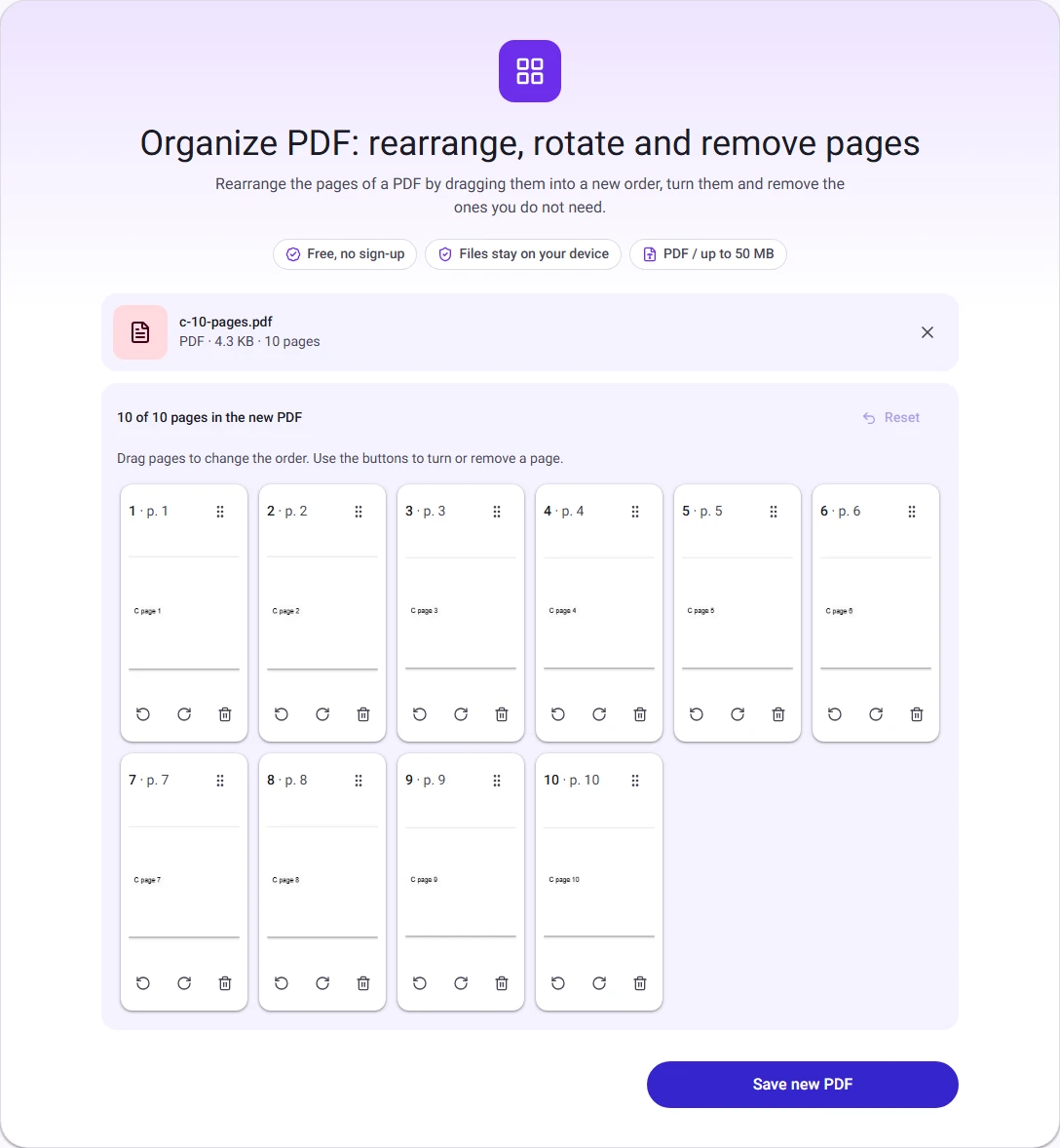
Each thumbnail card displays both its current sequence in the new document and its original page number (for example, 3 · p. 7 tells you that original page 7 will become page 3). If you make a mistake, selecting Reset restores every page to its original order and orientation.
A worked example
To demonstrate what happens behind the scenes, we opened a 10-page document (4.3 KB, 10 pages) in Organize PDF. We moved page 10 (the appendix) to position 2, rotated a landscape table on page 4 by 90 degrees right so it reads upright, and deleted a blank notes page at position 8:
| Original Page | Action Taken | New Position in Document |
|---|---|---|
| Page 1 (Cover) | Kept in place | Page 1 |
| Page 10 (Appendix) | Moved up | Page 2 |
| Pages 2–3 | Shifted down | Pages 3–4 |
| Page 4 (Table) | Rotated 90° clockwise | Page 5 (Upright) |
| Pages 5–7 | Shifted down | Pages 6–8 |
| Page 8 (Blank page) | Removed with delete button | Excluded from output |
| Page 9 | Shifted down | Page 9 |
The resulting file had 9 pages in the exact custom sequence and downloaded as a 4.4 KB PDF in under two seconds.
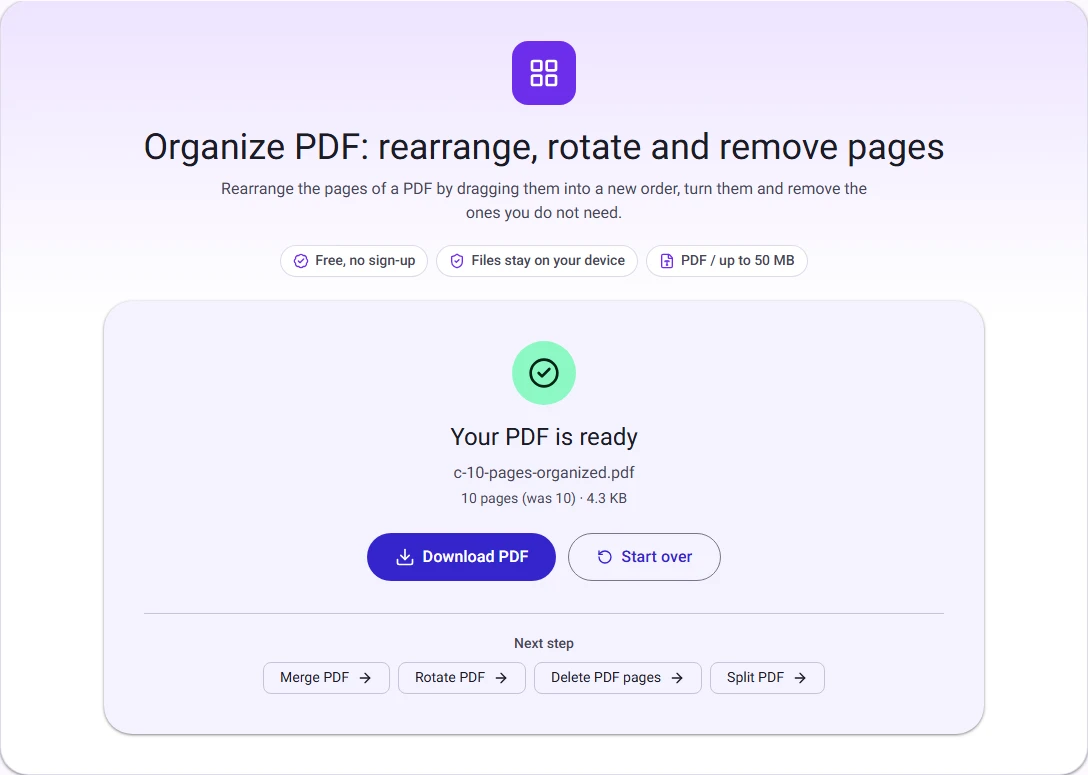
Because the tool rearranges the internal page tree rather than rasterising pages to bitmaps, the original text remains selectable, fonts remain embedded, and photos keep their full resolution.
Rearranging pages using a keyboard
For accessibility or faster editing on a laptop without a mouse, the page grid fully supports keyboard navigation:
- Selecting and moving: Press
Tabto navigate between page cards until you reach the drag handle of the page you want to move. PressSpaceto pick the page up. - Shifting positions: Use the
LeftandRightarrow keys (orUpandDown) to slide the page through the sequence. A live announcement states the page's updated position. - Dropping: Press
Spaceagain to drop the page into place, or pressEscapeto cancel the move. - Rotating and deleting: Tab directly to the rotate left, rotate right, or remove buttons on any page card and press
EnterorSpaceto activate them.
Handling multi-document workflows
Rearranging works within a single PDF document. When your paperwork involves multiple files, combine tools in this order:
- Pages from different files? If you have three separate PDFs (such as an application form, identification, and proof of address), combine them first using Merge PDF. Then open the combined PDF in Organize PDF to fine-tune the page order or delete duplicate blank pages.
- Need only two pages out of twenty? If you only need a couple of specific pages from a large manual, using Extract PDF pages with a typed range (e.g.,
1, 14-15) can be faster than deleting eighteen pages individually. - Need to split the file after reordering? Once the document is in the right order, you can divide it into individual chapters or sections with Split PDF.
What carries over, and what does not
Understanding what changes during page reordering prevents surprises:
- Preserved exactly: Text characters, embedded fonts, vector diagrams, raster photos, form field appearances, and page dimensions are preserved byte-for-byte.
- Bookmarks and outlines: Internal table-of-contents bookmarks (the outline tree shown in sidebar readers) frequently link to hardcoded page index numbers. Because reordering alters page indices, existing bookmark outlines are omitted to prevent broken links.
- Page-specific annotations: Highlights, stamps, and drawn notes placed directly on a page remain attached to that specific page wherever it moves.
- Passwords: A password-protected PDF cannot be inspected or rearranged while encrypted. If you know the password, remove it first with Unlock PDF, rearrange the pages, and re-encrypt the output with Protect PDF if necessary.
Common mistakes and how to avoid them
- Dragging by the card body instead of the handle. To prevent accidental page movements when tapping rotate or delete buttons, drag activation is pinned to the grip handle icon at the top right of each card.
- Deleting pages accidentally. If you click the trash icon on a page by mistake, select the Reset button at the top of the grid to restore the full original document without needing to re-upload.
- Forgetting to check rotation. Scanned paperwork often has every alternate page rotated if a double-sided sheet was fed manually. Look over the thumbnails before clicking save; turning them here saves having to run the document through a separate rotation tool later.
Privacy: why browser-based organizing matters
Many online PDF tools upload your complete document to cloud servers where it is rendered and rearranged remotely. For sensitive materials—such as tax filings, medical records, legal agreements, and corporate contracts—uploading unencrypted files poses avoidable privacy risks.
Organize PDF loads the PDF rendering engine (compiled to WebAssembly) directly inside your web browser. The page thumbnails are generated in local device memory, and the new PDF structure is built on your computer or phone. Your document is never uploaded to our servers, and closing the browser tab immediately clears the file from memory.
Questions people ask
Can I rearrange pages on an iPhone or Android phone?
Yes. On touchscreens, press and hold a page card's grip handle for 150 milliseconds to engage drag mode, then slide it into position. The rotate and remove buttons work with a single tap.
Will rearranging pages reduce the file size?
Only if you remove pages. Because pages are copied without lossy re-compression, keeping all ten pages results in roughly the same file size. If your final document is too large for an email attachment, pass it through Compress PDF.
What is the maximum number of pages I can organize?
The tool accepts PDFs up to 50 MB. For smooth drag-and-drop performance on phones and laptops, documents with up to 100 pages work comfortably.
How we measured
On 7 November 2026, we tested Organize PDF in Chrome on our sample 10-page quarterly report (c-10-pages.pdf, 4,415 bytes). Page 10 was moved to position 2, page 4 was rotated 90 degrees right, and page 8 was deleted. The resulting 9-page PDF was 4,460 bytes and took 1.2 seconds to process locally. The screenshots above were captured directly from that run.