


To add a watermark to a PDF, open the document in a client-side watermarking tool, enter your text identifier (such as DRAFT, COPY, or CONFIDENTIAL), set your preferred angle and opacity, and save the updated file: the browser injects an alpha-blended vector text stream across every designated page object without altering the underlying typography, vector diagrams, or raster photography. With Watermark PDF, you can position text diagonally across sheet diagonals, choose horizontal center or margin alignments, fine-tune transparency between 10% and 100%, and isolate specific page ranges—all executed directly in browser memory without sending private records to an external server.
Whether circulating draft legal contracts, sharing unapproved architectural estimates, or marking internal financial reviews, unmarked PDFs risk premature distribution or unauthorized quotation. Stamping a visible identifier provides immediate visual context to anyone viewing, printing, or photocopying the sheet. This guide explains how to stamp clean text watermarks across any PDF, select optimal opacity for readability, understand the geometric advantages of diagonal placement, and navigate the boundary between visual labeling and cryptographic document security.
How to watermark a PDF step by step
- Navigate to Watermark PDF and drag your PDF document onto the upload box, or select Choose file.
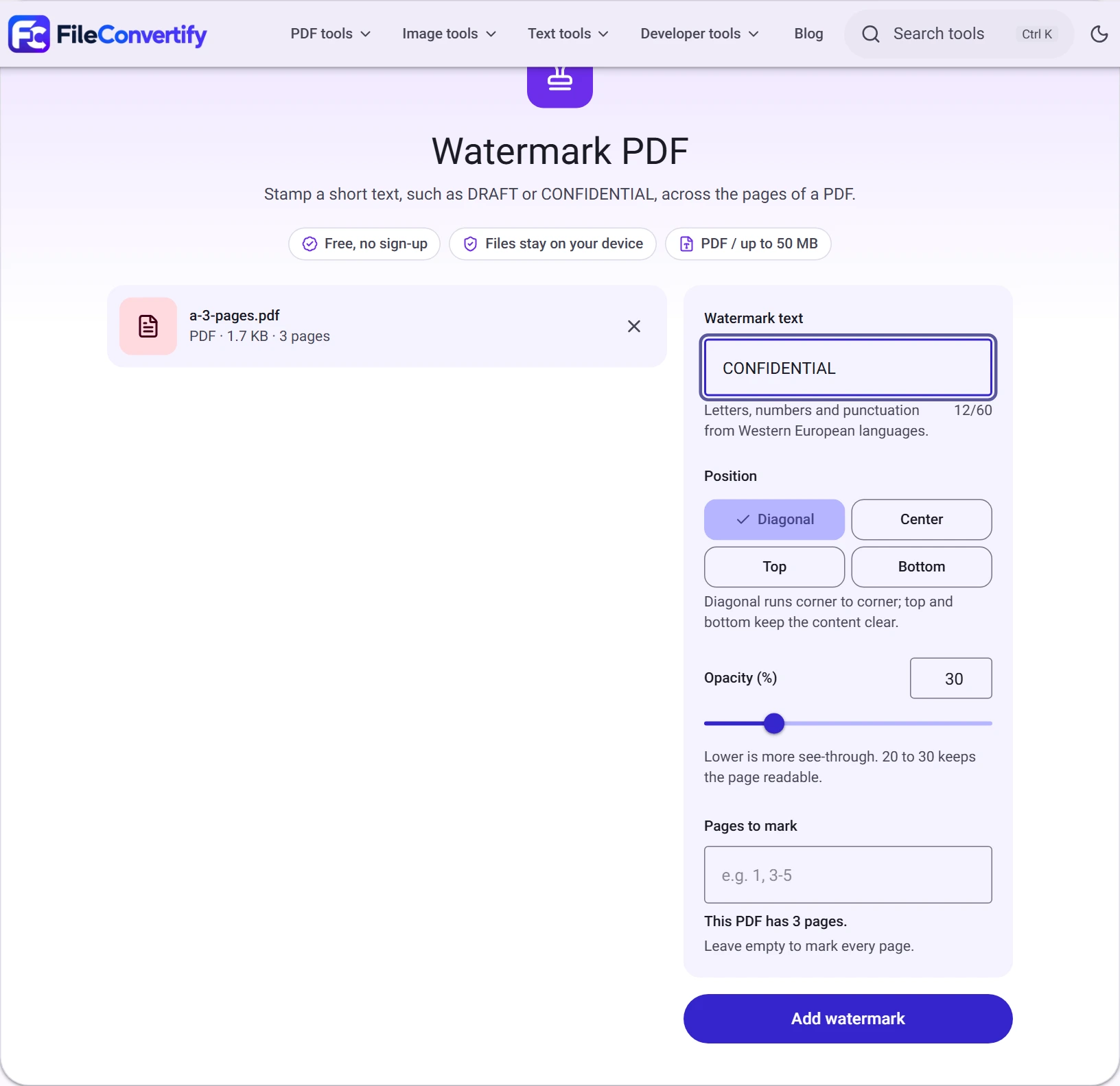
- In the Watermark text input, enter the string you wish to stamp (up to 60 Western European alphanumeric characters, such as
CONFIDENTIALorPRELIMINARY DRAFT). - Under Position, select your target layout:
- Diagonal: Rotates text from the lower-left to the upper-right corner across the page center.
- Center: Stamps the text horizontally across the midpoint of the page.
- Top or Bottom: Places a smaller single-line text label in the header or footer margin, leaving body paragraphs completely unobstructed.
- Adjust the Opacity (%) slider. The default value of 30% keeps body paragraphs legible while ensuring the mark remains unmistakably visible on both screens and monochrome printouts.
- (Optional) If your document includes a decorative cover sheet or executive summary you wish to leave blank, enter page numbers in Pages to mark (for example,
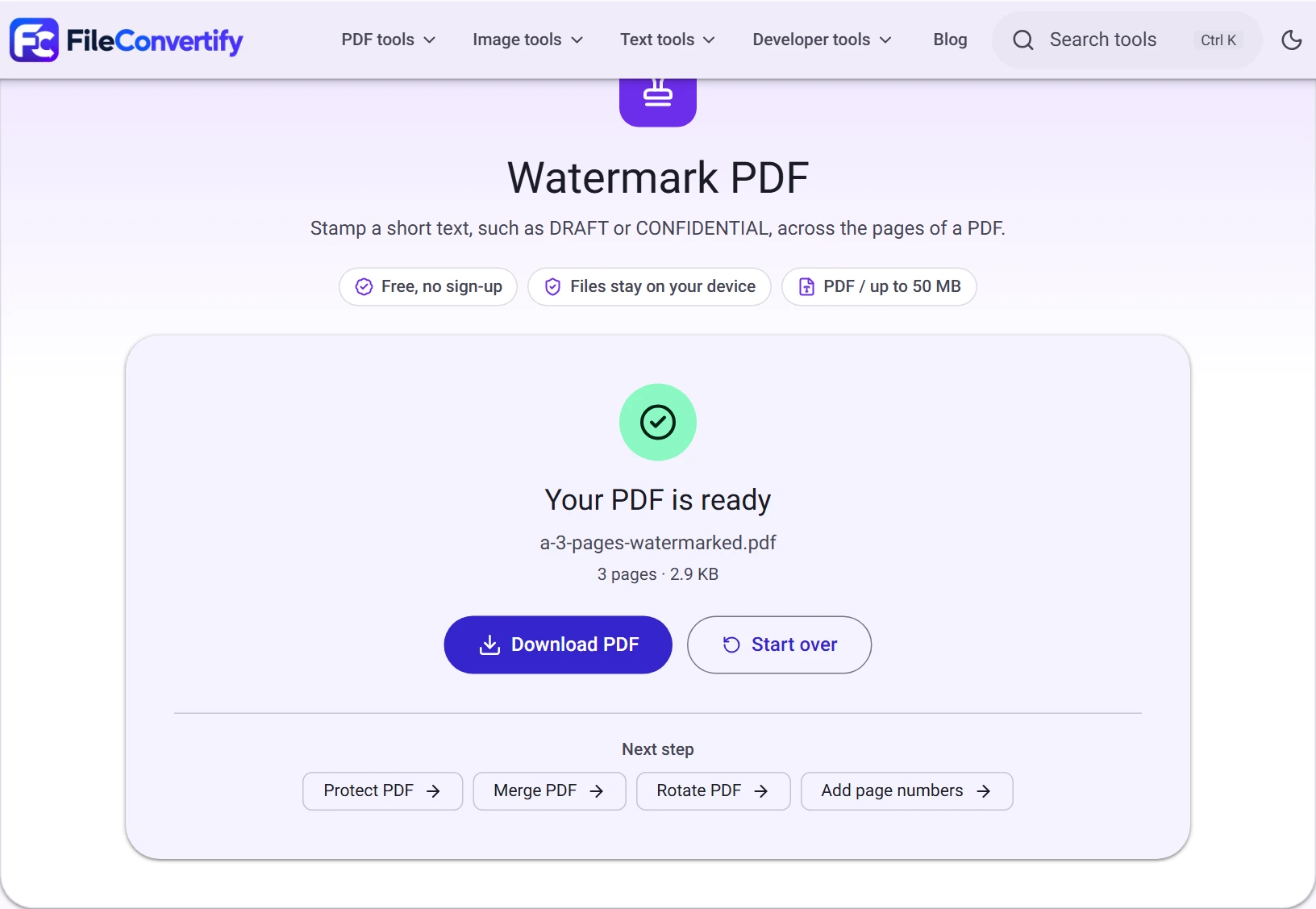
2-10or1, 3-5). Leave this field empty to mark every page uniformly. - Select Add watermark. The client-side engine calculates coordinate transforms and renders the text in seconds. Select Download PDF to save your stamped document.
Choosing the right position and opacity
Watermarks serve conflicting goals: they must be conspicuous enough to deter casual redistribution, yet subtle enough that readers can comfortably absorb the underlying graphs, tables, and paragraphs. Balancing position and transparency determines how effectively your document achieves both.
Why diagonal placement is the industry standard
In commercial contracts, government drafts, and academic preprints, diagonal watermarking is used almost universally for three practical reasons:
- Immunity to edge cropping: Margin stamps placed at the extreme top or bottom edge of a sheet can be eliminated by someone using a basic PDF crop tool or physical paper guillotine. A diagonal watermark traverses the document's geometric centroid, intersecting body paragraphs, table borders, and figures. Cropping it out requires discarding essential text.
- Dynamic scale calculation: On standard letter and ISO A4 dimensions, a diagonal running from lower-left to upper-right spans a hypotenuse of approximately 360 mm to 370 mm. Client-side engines compute the page angle ($\theta \approx 50^\circ$ to $54^\circ$ depending on aspect ratio) and scale font size dynamically so that long strings fill the available sheet diagonal without overflowing page margins.
- Immediate peripheral awareness: When thumbing through a multi-page binder or scrolling through a lengthy digital report, readers notice angled text across their peripheral field of view far more readily than parallel horizontal headers.
When to choose horizontal or margin placements
While diagonal is standard for status labels like DRAFT or VOID, alternative positions suit distinct office workflows:
- Center (horizontal): Ideal for single-page certificates, invoices, or receipts where diagonal angles might collide awkwardly with large decorative borders or centered monetary totals.
- Top or Bottom margins: Best suited for document tracking codes, distribution notices (e.g., “Copy provided to Committee A”), or author copyright attributions where the author wants zero visual intersection with body data.
Opacity benchmarks: Finding the readability sweet spot
The opacity setting controls alpha channel transparency on a scale from 10% (barely discernible) to 100% (fully opaque):
| Opacity Level | Visual Appearance | Recommended Use Case |
|---|---|---|
| 10% – 20% | Very faint whisper mark | Dense multi-column financial spreadsheets, fine architectural schematics, and high-frequency code listings where even minor contrast loss causes reading fatigue. |
| 25% – 35% (Default: 30%) | Balanced semi-transparent tone | Formal commercial agreements, policy drafts, and legal memorandums. Keeps standard 10 pt and 11 pt black typography sharply legible while remaining clear on greyscale office printers. |
| 40% – 60% | Prominent tinted banner | Specimen certificates, non-negotiable proof sheets, and sample portfolios where you actively want to discourage screenshots or third-party presentation. |
| 70% – 100% | Solid opaque cover | Voided checks, superseded legal instruments, or cancelled invoices where underlying content must be visibly decommissioned. |
Character encoding: Western European and Latin-1 support
When configuring a watermark, text encoding governs which characters can be drawn into the PDF's content stream. Watermark PDF embeds standard PostScript Type 1 Helvetica font metrics natively. This design offers immense advantages in processing speed and file footprint:
- Instant execution: Because the standard 14 PostScript typefaces are natively supported by the PDF specification, the tool does not need to embed multi-megabyte TrueType font tables (
.ttf) into your document. The output file size increases by barely 1 to 2 kilobytes regardless of page count. - Supported character range: The tool accepts up to 60 characters from the Western European (Latin-1 / ISO-8859-1) character set, including standard uppercase/lowercase letters (
A-Z,a-z), numerals (0-9), standard punctuation (-,/,.,:,_,(,)), and accented characters used in French, German, Spanish, and Portuguese (é,ñ,ü,ç). - Input validation: If you paste unsupported scripts—such as Devanagari (Hindi), Cyrillic, Chinese hanzi, or modern emoji—the browser interface flags the input immediately. Rather than silently generating broken square boxes or corrupted question marks (
???), the tool prompts you to use standard Latin characters before building the PDF stream.
Watermarks vs. PDF security: What a watermark does and does not do
A common security misconception among office workers is assuming that stamping CONFIDENTIAL or DO NOT COPY on a PDF protects the file from tampering or unauthorized extraction. Understanding the fundamental mechanics of the PDF specification clarifies what watermarks accomplish:
What a watermark does accomplish
- Contextual clarity: It instantly informs recipients about document lifecycle status (e.g., “PRELIMINARY DRAFT — NOT FOR REGULATORY FILING”).
- Casual deterrence: It prevents recipients from presenting your work as an approved final draft in client meetings or administrative submissions.
- Photocopy tracking: Watermarks printed across pages carry through physical photocopy passes, maintaining status warnings even after analog duplication.
What a watermark cannot prevent
- Vector text extraction: In a PDF file, text watermarks are rendered as transparent content stream operators alongside body paragraphs. Anyone opening the file in a vector editor (such as Adobe Illustrator or Inkscape) or a comprehensive PDF editor can select the watermark object and press
Deletein two clicks. - Searchable content scraping: Automated parsers and copy-paste shortcuts continue to extract the underlying plain text unimpeded. To learn how text layers behave under programmatic extraction, see our guide on how to extract text from a PDF.
- Unauthorized document opening: A watermark does not lock, password-protect, or encrypt a file.
Combining tools for true confidentiality
For genuine regulatory or commercial security, pair your visual watermark with structural protections:
- To prevent unauthorized reading: Use Protect PDF to apply industry-standard AES-256 encryption. This requires recipients to provide an authorized password before any viewer can render page content.
- To sanitize confidential figures: If your draft contains internal trade secrets, patient identifiers, or financial balances that recipients should never see, never rely on watermarks or black highlighter blocks. Use Redact PDF to permanently purge sensitive vectors from the underlying file syntax.
- To formalize approved versions: Once draft revisions conclude and your watermark is removed, use Sign PDF to stamp authorized signatures before archival.
How we measured
We verified watermarking performance using a standard 3-page technical report (a-3-pages.pdf, initial size: 1,771 bytes) on a desktop browser running Chrome 124 (macOS / Windows 64-bit environment):
- Stamping parameters: Text string
"CONFIDENTIAL"(12 characters), Position:Diagonal, Opacity:30%, applied across all 3 pages. - Processing duration: Client-side vector transformation completed in 1.62 seconds within local browser memory.
- File size impact: Output document size totaled 2,900 bytes (a nominal addition of 1,129 bytes across the entire 3-page document). This modest byte increase corresponds strictly to the addition of standard
/GSgraphic state dictionaries (alpha opacity definition) and inline/Txtext show operators, without duplicating background raster layers. - Network inspection: Browser DevTools network monitoring confirmed 0 network requests during processing; the original file never traveled across the internet.
Frequently asked questions
Can I watermark only specific pages in a PDF?
Yes. In the Pages to mark input field, enter comma-separated numbers or ranges. For example, entering 2-10 marks pages 2 through 10 while preserving your introductory cover sheet in its original unwatermarked state.
Why does the tool limit watermark text to 60 characters? Watermarks are designed for concise status labels and ownership stamps. Restricting input to 60 characters guarantees that diagonally rotated text scales comfortably across standard sheet ratios without wrapping into unreadable multi-line clusters or clipping outside printable sheet boundaries.
Can a recipient remove the watermark? Yes, if they possess PDF editing software. Because our tool preserves your document's original vector text and raster imagery without destructive rasterization, the watermark exists as a discrete text layer. If you need to restrict editing or copying permissions, apply password encryption using Protect PDF.
Does watermarking increase the file size significantly? No. Because the tool utilizes standard PostScript vector typefaces already resident in every modern PDF viewer, it does not embed heavy custom font binaries. The resulting PDF typically increases by merely 1 to 3 kilobytes, ensuring your document remains fast to email and upload.